
Table of Contents
Cursor vs Copilot: Complete Comparison 2026
It is July 2026, and both tools moved since this guide last ran the numbers in May. SpaceX now owns Cursor, a $60 billion all-stock deal announced June 16 (per TechCrunch). Copilot shipped agentic browser tools, parallel chat sessions, and its first open-weight model. Cursor answered with 3.11 side chats and a split of its Teams pricing. Three changes carry the update: the acquisition adds a vendor-risk line for enterprise Cursor buyers, Copilot's July releases close real feature gaps, and the new Cursor Teams tiers reset the per-seat math. The bottom line by persona has not flipped, but the margins have. A solo developer on VS Code still picks Cursor. A GitHub team of five to fifty leans Copilot harder than it did in May. A mixed-editor team picks Copilot, same as always.
Which one should you pick
The short version: the deciding axis is who supplies the file set for a multi-file change. Cursor owns the editor, so it builds and queries a local codebase index and discovers the files itself. Copilot rents an extension slot inside your editor, so it edits the files you name and nothing else. Cursor wins for developers who do cross-file refactors on VS Code. Copilot wins for everyone whose editor is not VS Code, whose team is mixed, or whose work is mostly inline and single-module. That call inverts on exactly one variable: editor lock-in, covered in the verdict.
What changed in July 2026
Four releases and one acquisition landed after the May cut. None of them rewrites the core trade-off. Two of them move the margins enough to change a buyer's answer.
SpaceX now owns Cursor
The June 16 deal is $60 billion in all stock, expected to close in the third quarter (per TechCrunch). For an individual developer, nothing changes today. The editor, the models, and Privacy Mode all work the way they did last week. For an enterprise buyer, it adds a step. A vendor-risk review now weighs Cursor's new owner, a company that runs a government-adjacent launch business and a sibling AI division that has drawn regulatory scrutiny. That is not a mark against the product. It is a new box on the procurement checklist that was not there in May, and for a team with compliance obligations, a new box is friction. Copilot, sitting inside GitHub and Microsoft, carries no equivalent open question.
Cursor 3.11: side chats and transcript search
Cursor 3.11 shipped July 10. Its headline feature is side chats. Mid-refactor, you open a parallel agent thread with /side, ask it something ("what does this legacy auth flow assume?"), and pull the answer back into your main thread with an at-mention (per the Cursor changelog). The main agent keeps its place. Before this, a tangent meant derailing the thread you were already deep in. The release also adds transcript search: Cmd+K queries a local index across thousands of past conversations, so a team with a long project history can find the session where a decision actually got made. For the post-acquisition deep dive on Cursor itself, the Cursor review walks through 3.11 in detail. To try it, Cursor still runs a free Hobby tier with no card required.
Copilot's answer: an open-weight model, browser agents, parallel sessions
Copilot had the busier month. Kimi K2.7 Code went generally available on July 1 as the first open-weight model in Copilot's model picker, billed usage-based at provider list pricing rather than folded into the flat seat fee (per the GitHub changelog). It reached Pro, Pro+, and Max first; Business and Enterprise admins have to switch it on. The people who benefit are heavy agent users who want a cheaper model on the tasks that burn the most tokens.
On July 8, agentic browser tools went GA in VS Code. An agent can navigate pages, capture screenshots, inspect the DOM, and validate a running web app without leaving the editor (per the GitHub changelog). Cursor has no native match for this yet, and the tools are VS Code only for now, not in the JetBrains plugin. The same release added multiple parallel sessions and multiple chats per session, so a docs thread and an implementation thread run beside each other. That is the same itch Cursor 3.11 side chats scratch, solved a different way. Copilot's sessions stay independent. Cursor's side chat shares the main session's file context and feeds results back. Both beat losing your place when someone interrupts you.
For Visual Studio users, a July 14 update added MCP server trust validation, which checks a server's fingerprint against a trusted baseline at startup and prompts for approval if the config changed, plus in-IDE pull request review for GitHub and Azure DevOps (per the GitHub changelog). Neither headlines for a solo developer. Both matter to a locked-down enterprise.
The core philosophical difference
Get this part and every comparison below falls into place.
@workspace retrieves on demand. It has no standing map of the project. That is why "which files need to change" is automatic in one and your job in the other. Everything below is a consequence of this single difference.
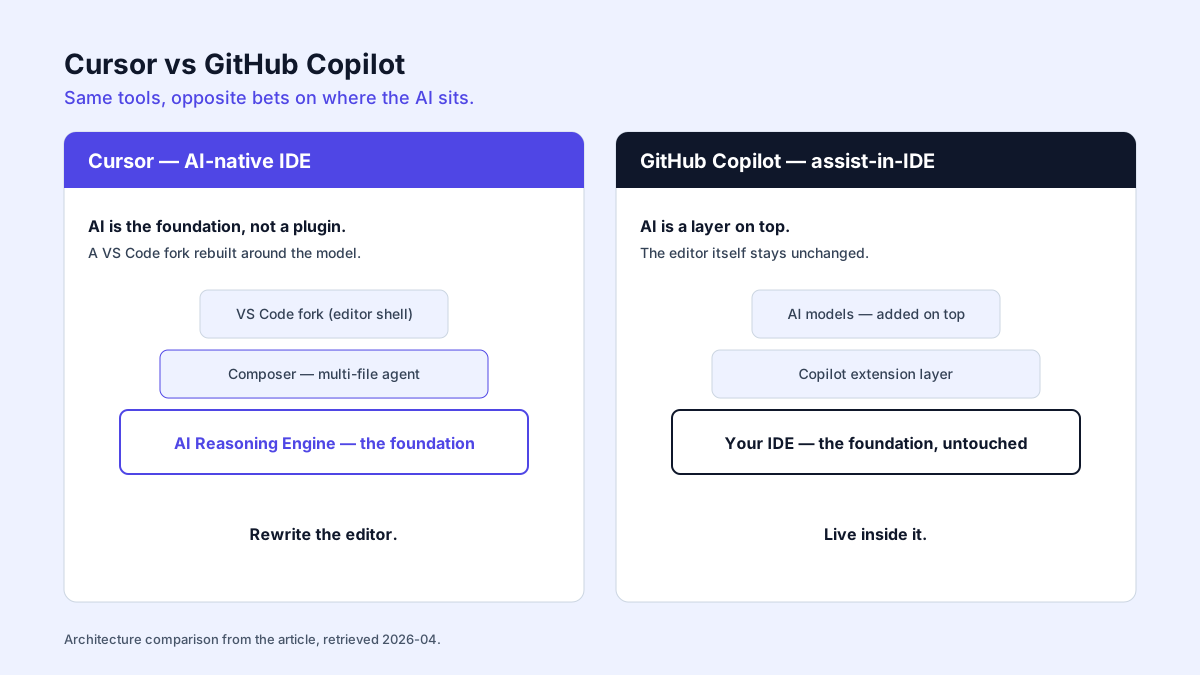
Where the index decides it
1. Code completion quality
Most developers judge these tools on completions first. It is also where the index-vs-extension gap shows up fastest.
GitHub Copilot made AI code completion mainstream. You type, it suggests, you press Tab. The ghost-text suggestions are fast and stay out of the way, and they are strong on single-line and short multi-line work. GPT-4o under the hood made them snappier and better-targeted than the old Codex completions from 2022.
Cursor plays a different game. It owns the whole editor (it is a fork of VS Code, not an extension bolted on), so it does things Copilot structurally cannot. Completions are aware at the project level, not just the file level. Cursor indexes your codebase locally and feeds that index into every suggestion. The payoff is architectural consistency. It knows your naming conventions, your patterns, your utility functions, even across files you never opened.
I ran this exact test on a TypeScript codebase of roughly 45,000 lines. The task: write a new service function that pulled imports from src/types/billing.ts, helpers from src/utils/validation.ts, and a database helper from src/db/queries.ts. None of those three files were open.
Cursor nailed all three imports on the first suggestion, with correct signatures. It had already indexed the project and knew those utilities existed. Copilot guessed. The imports looked plausible and were wrong, and it invented a validateBillingEntry function that does not exist anywhere in the tree. Three rounds of correction later it landed on something that worked.
That pattern held for four weeks. The mechanism is exactly the one above: Copilot had no index, so it pattern-matched a plausible import from the open buffer and hallucinated validateBillingEntry; Cursor retrieved the real symbol because it had already embedded the file. On within-file completions over familiar patterns, where the open buffer is enough context, the two were a wash. The edge is not "smarter AI," it is standing context versus none.
2. Chat and agent capabilities
Both vendors poured money into chat. They arrived by different roads.
GitHub Copilot Chat sits in a sidebar panel. Ask it to explain code, write tests, fix bugs, scaffold a feature. It sees your current file and selection, and @workspace widens the lens to broader project context. Across 2025 and 2026 GitHub shipped Copilot Agent mode, which plans multi-step tasks, runs terminal commands, and iterates on its own output.
Cursor's chat is wired into the editor itself, not stapled to the side. The real differentiator is Composer. It reasons across the whole codebase, plans changes that span files, and applies edits in place. Describe the work in plain English ("refactor the authentication flow to use JWT instead of session tokens") and Composer maps the files that need to move, proposes edits, and lets you accept them one at a time or all at once.
I ran the same refactor through both agent modes: move auth from session-based to JWT, touching middleware, route handlers, and the test suite. Fourteen files needed changes.
Cursor Composer found all 14 on its own. It laid out a coherent plan, applied edits I could review file by file, and only three files needed a small post-edit fix.
Copilot's agent made me name the files. I caught 9 of 14 on the first pass. It handled those 9 correctly. The 5 I missed planted quiet integration bugs that only showed up in testing. Add the missing files, run it again, clean.
The gap is autonomy, and it is the index again. Cursor has a map of the codebase, so its agent's recall ceiling is the index quality. Copilot's agent has no map, so its recall ceiling is your memory of what needs to change. The 5 files I missed were not a model failure; they were files the human did not name to a tool that cannot find them on its own.
- Finds relevant files automatically using codebase index
- Diff preview before any changes are applied
- Handles complex multi-file refactors end-to-end
- Inline chat without leaving your cursor position
- No GitHub PR / issue integration
- VS Code only: no JetBrains, Neovim
- Creates PRs and references GitHub issues natively
- Works in every major IDE: consistent across teams
- Excellent for well-scoped, single-module tasks
- Reads CI results and iterates automatically
- You must manually specify which files to include
- Less autonomous for large cross-codebase changes
3. Multi-file editing
Cursor's longest-running lead.
Cursor's Composer was built for this. Open it, describe the work, and it produces a change plan across as many files as the job needs. It tracks file relationships, import chains, and type dependencies, then shows you a diff preview of every change in every file before you accept a line. Renaming a core type, migrating an API pattern, restructuring a module: this is where it earns the subscription.
GitHub Copilot Edits brought multi-file editing into the Copilot world. Add files to a working set, describe the change, Copilot proposes edits across them. It got much better over 2025 and 2026. One difference still matters: you have to tell Copilot which files to include. Cursor works that out itself by hitting its codebase index.
The test: rename a core TypeScript interface (UserPayload) referenced in 12 files across 4 directories.
Cursor Composer found all 12 unprompted, including JSDoc comments and test fixture types I had forgotten existed. Every change correct. Zero TypeScript compiler errors after apply.
Copilot Edits got the 9 files I named. Those 9 were handled correctly. The 3 I missed produced TypeScript compilation errors that ate 25 minutes of hunting. Second pass with the missing files added, clean.
Same mechanism, third time: the 3 files Copilot missed were the 3 I did not name. The decisive question in multi-file editing is "do you know in advance which files change." If yes, both work. If no, only the tool with a standing index can answer it, and that is the 20% of work that justifies Cursor's price premium.
4. Language and framework support
Both cover every major language. The nuances are worth knowing.
GitHub Copilot trained on years of GitHub's open-source corpus. It is exceptionally strong in the popular tier: Python, JavaScript/TypeScript, Java, C#, Go, Rust. On mainstream frameworks like React, Django, Spring Boot, and .NET, its suggestions are often near-perfect. It has seen millions of examples.
Cursor runs the same models (Claude, GPT-4o) but pairs them with your project context. So it can out-suggest Copilot on your specific codebase even in a less common language, because it has indexed your patterns and conventions.
| Language/Framework | Cursor | Copilot | Notes |
|---|---|---|---|
| Python | Excellent | Excellent | Near parity |
| TypeScript/JavaScript | Excellent | Excellent | Cursor edges ahead in monorepos |
| Java | Very Good | Excellent | Copilot's training data advantage shows |
| C# / .NET | Very Good | Excellent | Deep VS integration helps Copilot |
| Go | Very Good | Very Good | Near parity |
| Rust | Very Good | Very Good | Both improving rapidly |
| Ruby | Good | Very Good | Copilot slightly ahead |
| PHP | Good | Very Good | Copilot slightly ahead |
| Swift/Kotlin | Good | Good | Both adequate |
| Niche (Elixir, Haskell, etc.) | Good (with context) | Fair to Good | Cursor's indexing compensates |
I tested across TypeScript, Python, and Go. On Python (a data pipeline project) and standard TypeScript, the two ran near-parity.
Go is where they split. One of our engineers worked against an internal RPC framework with thin public docs. Copilot kept reaching for standard net/http patterns, because that is what its training data knows. Cursor had indexed the codebase, seen how that internal framework was used elsewhere, and produced idiomatic code for the specific setup on the first try.
The mechanism splits cleanly here. Copilot's strength is training-data volume: it has seen millions of Django and Spring Boot examples, so on a mainstream stack the base model is already excellent and the index adds little. Cursor's strength is local context: on an internal framework the public training data never saw, the index is the only thing that knows the convention. The weirder your stack, the more the index earns its keep; the more mainstream it is, the more Copilot's corpus closes the gap to zero.
5. IDE integration
This is where the decision often gets made, AI quality aside, for plain practical reasons.
Cursor is a standalone editor, a fork of VS Code. Same look, same feel, most VS Code extensions work, same settings and keybindings. Migrating off VS Code costs you almost nothing. The downside is that it is only Cursor. JetBrains IntelliJ, WebStorm, PyCharm, GoLand, Neovim, Visual Studio? Cursor is off the table unless you switch your primary editor.
GitHub Copilot runs everywhere. VS Code, the full JetBrains suite, Neovim, Visual Studio, plus the browser via github.dev and GitHub Codespaces. On a team where developers spread across editors, Copilot is the only tool that gives all of them the same AI experience.
| IDE/Editor | Cursor | GitHub Copilot |
|---|---|---|
| VS Code | ✅ Native (VS Code fork) | ✅ Extension |
| JetBrains IDEs | ❌ Not available | ✅ Full extension support |
| Neovim | ❌ Not available | ✅ Plugin |
| Visual Studio | ❌ Not available | ✅ Extension |
| Xcode | ❌ Not available | ⚠️ Extension (limited) |
| GitHub.dev / Codespaces | ❌ Not available | ✅ Native |
6. Pricing breakdown
Money next. The pricing structures differ enough to change the answer.
- Limited completions
- Limited chat requests
- 1 user only
- Unlimited completions
- 500 fast requests/mo
- All AI models (Claude, GPT-4o)
- Privacy mode
- Everything in Pro
- Premium seat at $96 for 5x usage
- [Admin controls](/coding/guides/cursor-enterprise-admin-controls/), central billing
- SOC 2 + DPA
- 2,000 completions/mo
- 50 chat messages/mo
- All supported IDEs
- Unlimited completions
- All supported IDEs
- Chat + agent mode
- Multi-model picker
- Fine-tuned models
- Knowledge bases
- Audit logs
- IP indemnification
Copilot Individual at $10/mo is half Cursor Pro's $20/mo. The sticker gap is real but small against an engineer's hourly rate, and it only matters if the productivity delta is zero. It is not, in one specific case. Across the four-week test, sessions involving multi-file editing or codebase-wide refactoring ran about 35 minutes shorter on Cursor and came up roughly three times a week. That is ~7 hours a month; at $150/hour the $10 price difference is recovered in the first such task of the month, with the rest as margin.
The whole ROI argument rests on one load-bearing condition: it holds only if cross-file refactoring is actually in your week. The 35-minute delta is the index doing the file discovery your engineer would otherwise do by hand. A team writing greenfield features in familiar frameworks rarely triggers that path, so the productivity gap collapses toward the raw $10 sticker difference, and at that point Copilot is simply the cheaper capable assistant. Run the seat math on what your team actually does, not on the feature list.
Team pricing changed on July 1. Cursor split its Teams plan into two seats. Teams Standard is $32 per seat per month on annual billing ($40 monthly), and Teams Premium is $96 per seat annual ($120 monthly) for 5x the included usage (per Cursor's Teams pricing update, fetched 2026-07-18). Against that, Copilot Business is $19 per user per month and Copilot Enterprise is $39 (per GitHub's Copilot plans, fetched 2026-07-18). At five seats, Cursor Teams Standard runs $65 a month more than Copilot Business. At fifty seats the gap is $650 a month. One wrinkle on the Copilot side: Kimi K2.7 Code bills usage-based on top of the seat fee, so a team that leans on it for heavy agent work adds a variable cost the flat seat price used to hide. For a single developer, Cursor Pro stays $20 a month (per cursor.com/pricing, fetched 2026-07-18) against Copilot's $10 individual tier.
7. Privacy and security
Proprietary code or a regulated industry? This section outranks every feature comparison above.
Cursor ships a Privacy Mode that guarantees code is never stored on Cursor's servers or used for training. Code goes to the model provider (Anthropic, OpenAI) for inference only, no retention. The Business plan adds SOC 2 compliance, data processing agreements, and org-level control over privacy settings.
GitHub Copilot for Business and Enterprise excludes your data by default. Code is not retained and not used to train models. Enterprise layers on more: IP indemnification (GitHub's copyright commitment), audit logs, repo-level policy controls over which repos can use Copilot, and SAML/SCIM.
| Privacy/Security Feature | Cursor | GitHub Copilot |
|---|---|---|
| Code retention opt-out | Privacy Mode (all plans) | Business/Enterprise (default) |
| SOC 2 Compliance | Business plan | Business/Enterprise |
| IP Indemnification | Not publicly offered | Enterprise |
| Audit Logs | Business plan | Enterprise |
| SAML/SSO | Business plan | Business/Enterprise |
| Self-Hosted Option | No | GitHub Enterprise Server (limited) |
| Data Processing Agreement | Available on request | Standard for Business/Enterprise |
8. Team and enterprise features
Cursor Business gives you centralized billing, team management, admin control over model usage, shared config, and usage analytics. Clean, covers the basics. Its enterprise story is still maturing next to GitHub's.
GitHub Copilot Enterprise rides the GitHub ecosystem. Admins gate Copilot at the org and repo level, set content exclusion policies, watch usage metrics across the org, and fold it into existing GitHub audit logging. Copilot can also reference internal knowledge bases and docs to build org-specific AI context.
I ran Cursor Business on a four-person team for two weeks. The admin panel is functional but thin: centralized billing, per-seat usage stats, an org-wide privacy-mode toggle. Adding a teammate takes about two minutes. Removing one is instant.
Copilot Business through GitHub's admin console is visibly deeper. I could see which repos had Copilot on, set content exclusion policies per repo, and read aggregate usage with language breakdowns. For a team already living in GitHub org settings, it felt like an extension of tooling they already run, not a second admin surface to learn.
Under 10 people, the practical difference is small. At larger orgs already on GitHub Enterprise, Copilot's admin depth is a real edge, and the reason is structural rather than feature-count: Copilot's admin surface is the GitHub org you already run, so there is no second control plane to staff. Cursor Business is a competent but separate surface.
Five scenarios, four weeks, one shared codebase
March into April 2026, against a shared TypeScript/Python codebase. Read these as five tests of one hypothesis: the gap is file discovery, not model quality. Every verdict below traces back to whether the tool found the files or you had to.
Test 1: Greenfield project scaffolding
Task: Scaffold a new Next.js 15 app with Clerk authentication, Drizzle ORM, and a REST API.
Cursor produced the more complete, immediately runnable scaffold. Clerk provider wired into the App Router layout correctly, Drizzle set up with proper TypeScript types, route handlers matching our project's patterns. npm run dev worked first try.
Copilot's scaffold cost about 20 minutes of cleanup. The Clerk integration used a deprecated v4 API pattern, the Drizzle setup had no connection string config, and several routes shipped Pages Router conventions instead of App Router.
Verdict: Cursor, clearly. Its grip on current library versions and App Router patterns shows.
Test 2: Bug fixing in an unfamiliar codebase
Task: Clone an open-source TypeScript component library (~8,000 lines), fix a reported edge-case bug.
Cursor found the relevant component in 30 seconds off its index. The fix was right on the second attempt. Total: 18 minutes.
Copilot needed the file list handed to it via @workspace. Its first fix treated the symptom, not the cause. Three iterations. Total: 34 minutes.
Verdict: Cursor, especially on code you do not know. The index decides it.
Test 3: Large-scale refactoring
Task: Migrate a REST API module (14 endpoint handlers) from custom validators to Zod schema validation.
Cursor Composer flagged all 14 files, proposed a clear migration plan, and applied changes that compiled clean on the first run. Total: 22 minutes including review.
Copilot Edits got 11 of 14 (I missed 3 utility files). The 11 were handled correctly. The 3 misses threw runtime errors in integration tests. Add the missing files, second pass clean. Total: 41 minutes.
Verdict: Cursor, by a lot. Automatic file discovery is the decisive lever in codebase-wide refactors.
Test 4: Day-to-day coding (acceptance rate)
Three weeks of normal development, tracking inline suggestion acceptance:
- Cursor: 71% single-line, 54% multi-line block
- Copilot: 67% single-line, 48% multi-line block
Real gap, not a dramatic one. Cursor's edge is project-aware multi-line suggestions: fewer invented function names, tighter adherence to existing conventions.
Verdict: Cursor, small but consistent margin.
Test 5: Agent mode (complex multi-file task)
Task: "Add a rate-limiting system to the API that tracks per-user request counts in Redis, returns 429 responses with retry-after headers when limits are exceeded, and includes an admin endpoint for adjusting limits per user tier."
Cursor Composer flagged 7 files, including the Redis client setup and the test suite, without prompting. The implementation came in 90% correct, one manual fix for a Redis TTL edge case. Total: 28 minutes.
Copilot Agent built the rate limiter correctly in isolation but missed the hook into existing auth middleware, a connection that needs understanding of the codebase's request context structure. That left a 10 to 15 minute integration gap. Total: 45 minutes.
Verdict: Cursor on complex tasks with multiple integration points. On well-scoped single-module work, Copilot's agent holds its own.
Who should choose Cursor
Pick Cursor if:
- You live in VS Code and have no strong tie to another IDE.
- You refactor across files often. Renaming types, migrating patterns, restructuring modules. Composer is best-in-class here.
- You want the deepest AI integration available. Cursor owns the whole IDE, so the experience is more cohesive than any extension can be.
- You work large codebases where project-level context meaningfully lifts suggestion quality.
- You are a power user who swaps between models (Claude, GPT-4o, others) per task.
- $20/mo is comfortable and the productivity gain clears the premium over Copilot Individual.
Who should choose GitHub Copilot
Pick Copilot if:
- You use JetBrains, Neovim, or Visual Studio. Copilot is your only serious option for a top-tier assistant.
- Your team spreads across editors. Copilot gives all of them the same experience.
- You want the cheapest way in. $10/mo Individual is the best value in the category.
- Your org runs GitHub Enterprise and you want deep ties to existing workflows: issues, PRs, code review, Codespaces.
- You need enterprise compliance. IP indemnification, audit logs, SAML/SCIM, mature data governance.
- You mostly want inline completions and chat, not heavy multi-file editing. For that core, Copilot is excellent and cheaper.
- Ecosystem breadth matters to you. Creating PRs from agent mode and referencing issues adds value past code completion.
Frequently asked questions
Is Cursor just VS Code with AI?
Not really. Cursor is a fork of VS Code. It started from the open-source codebase and has drifted a long way since. It keeps VS Code's extension ecosystem and UI conventions, so it feels familiar on day one. But the core editor was rebuilt around the model. Composer, codebase indexing, inline AI chat: none of that is replicable as a VS Code extension. It is VS Code rebuilt with AI as a first-class citizen, not VS Code with an AI plugin.
Can I run both Cursor and Copilot at once?
Technically yes. You can install the Copilot extension inside Cursor. Two completion engines firing at the same time gets noisy fast. I ran both for a week. They triggered suggestions on top of each other, which made the editor busy instead of helpful, and the Copilot extension added a touch of latency (subjective, but I felt it). Most people who try this land in the same place: pick one. The marginal upside does not pay for the interference.
Which tool is better for beginners?
GitHub Copilot. Three reasons. It is cheaper ($10/mo vs $20/mo). It runs inside the editor you are probably already learning (VS Code, no migration). And its inline suggestions are a natural way to absorb patterns without the weight of agent mode or multi-file editing. Cursor is a power tool. It rewards developers who already know their codebase and can judge AI-generated changes critically.
Does Cursor work offline?
No. Both tools need a connection because the models run on remote servers. Neither has a fully offline mode. Air-gapped environment? Neither fits without extra infrastructure.
Which handles large monorepos better?
Cursor, as a rule. Its local index was built for large projects where cross-file relationships are the whole game. Copilot's context awareness has come a long way, especially with @workspace, but Cursor's approach digs deeper.
Will Copilot catch up to Cursor's features?
It is closing. GitHub has shipped multi-file editing, agent mode, multi-model support, and better context awareness, every one an area Cursor led first. The gap narrows each release. But Cursor holds a structural advantage: as a standalone editor it can change the IDE experience more deeply than any extension can. It is the most interesting fight in developer tools right now.
The verdict
- Best-in-class multi-file editing via Composer
- Deepest AI integration: woven into every layer of the editor
- Local codebase indexing for large, complex projects
- Switch between Claude, GPT-4o, and more per task
- VS Code only: no JetBrains, Neovim, or Visual Studio
- $20/mo, twice the cost of Copilot Individual
- Enterprise story still maturing vs. Copilot Enterprise
- Works in every major IDE: VS Code, JetBrains, Neovim, and more
- Best price: $10/mo Individual, free tier available
- Deep GitHub ecosystem integration (PRs, issues, CI)
- Most mature enterprise compliance + IP indemnification
- Multi-file editing requires manually selecting files
- AI is a layer on top of the editor, not foundational
- Less powerful for large cross-codebase refactors
The call from four weeks side by side. If you write a meaningful share of your week in VS Code and hit multi-file refactors regularly, use Cursor. The index removes the file-discovery step that Copilot leaves to you, the 35-minute-per-task delta is measurable, and it clears the $10/month premium on the first such task each month.
The recommendation flips on exactly one variable: editor lock-in. The instant your primary editor is JetBrains, Neovim, or Visual Studio, or your team is split across editors, Cursor is not on the table and Copilot is the only serious option, a genuinely strong one at $10/month. Two more inverters even for a VS Code-only developer. If your org lives in GitHub (Codespaces, Actions, code review, internal knowledge bases), the platform fit is worth more than the index advantage. And if you work in a regulated industry, Copilot Enterprise's IP indemnification and audit story outrank every capability comparison above. Outside those conditions, on VS Code with real cross-file work, Cursor wins and it is not close.
Here is the same call by buyer, updated for July 2026:
- Solo developer on VS Code. Cursor Pro at $20/month still wins for heavy cross-file refactoring. The one new reason to look the other way is front-end work: Copilot's browser agent now validates a running web app from inside the editor, and Cursor has no native answer to that yet.
- Team of five on GitHub. Copilot Business at $19 per user (per GitHub's Copilot plans) runs $65/month under Cursor Teams Standard. Below ten seats, the feature gap does not clear that difference unless your team genuinely lives in Composer for heavy agentic work.
- Team of fifty on GitHub Enterprise. Copilot Enterprise at $39 per user makes a stronger case than it did in May. In-IDE PR review, MCP trust validation, and org-level custom agents are shipping now, and the SpaceX acquisition adds a vendor-risk review step for Cursor that was not on the checklist before.
- Mixed-IDE team. Copilot, same as always. Cursor asks every developer to switch editors, and that is a non-starter for a team that does not already share one.
Both have free tiers with no card required. The only test that settles it is the one above on your own repo: run a cross-file refactor where you do not already know the file set, and watch which tool finds it. Cursor and GitHub Copilot have current plan details.
Last updated: July 2026. Re-tested quarterly; prices and features shift between releases.