Table of Contents
Gemini Can Now Edit a Whole Google Slides Deck in One Prompt
Until this week, fixing the fonts across a long deck with Gemini in Google Slides meant one prompt per slide, repeated for every slide that needed it. Google changed that on October 30, 2026: a single prompt in the Slides side panel can now reach every slide in the deck that needs the change, not just the one you're looking at.
That's the whole mechanism, and it's worth pausing on. Gemini used to generate or rewrite one slide per request; now it decides which slides across the whole deck a request touches, then edits the native, editable slides directly, the same way a person using Slides would. Undo and version history still work on top of it. It ships to the paid tiers first, though, and the plan gate is tighter than you'd expect from a feature this small-sounding.
What's actually new
Gemini in Slides has done single-slide work for a while, per Google's own Collaborate with Gemini in Slides documentation: generate an image, draft a new slide, rewrite a block of text, summarize the deck. All of it routes through the "Ask Gemini" button, and historically, each of those actions landed on one slide or produced one new one. Multi-slide generation existed too (an earlier June 2026 launch let Gemini build a full deck from scratch), but that was generation, not editing an existing one.
October 30 closes that gap. Per Google's announcement, one prompt can now update content throughout a deck, refresh visual styles in bulk, or match the style of a different presentation, and Gemini figures out on its own which slides need touching. You stay in full control: edits land as if you made them yourself, so a bad result is one undo away, or a trip to version history if you've moved on to something else since.
The prompts Google is telling people to try
Four examples come straight from the announcement, and they map to four different jobs:
- Restyle everything at once: "Update this whole deck to match the style of this [reference file]."
- Rewrite content across slides: "Update this presentation to include more details based on [reference file]."
- Collapse or grow the deck: "Summarize slides 5-7 into a single slide."
- Clean up consistency: "Make the titles on all slides the same font size and color."
Notice none of these name a specific slide number as the target. The missing slide number is the tell that you're in the new mode instead of the old one. A prompt scoped to "slide 4" still lands in single-slide territory, which still works fine, it's just not the new thing.
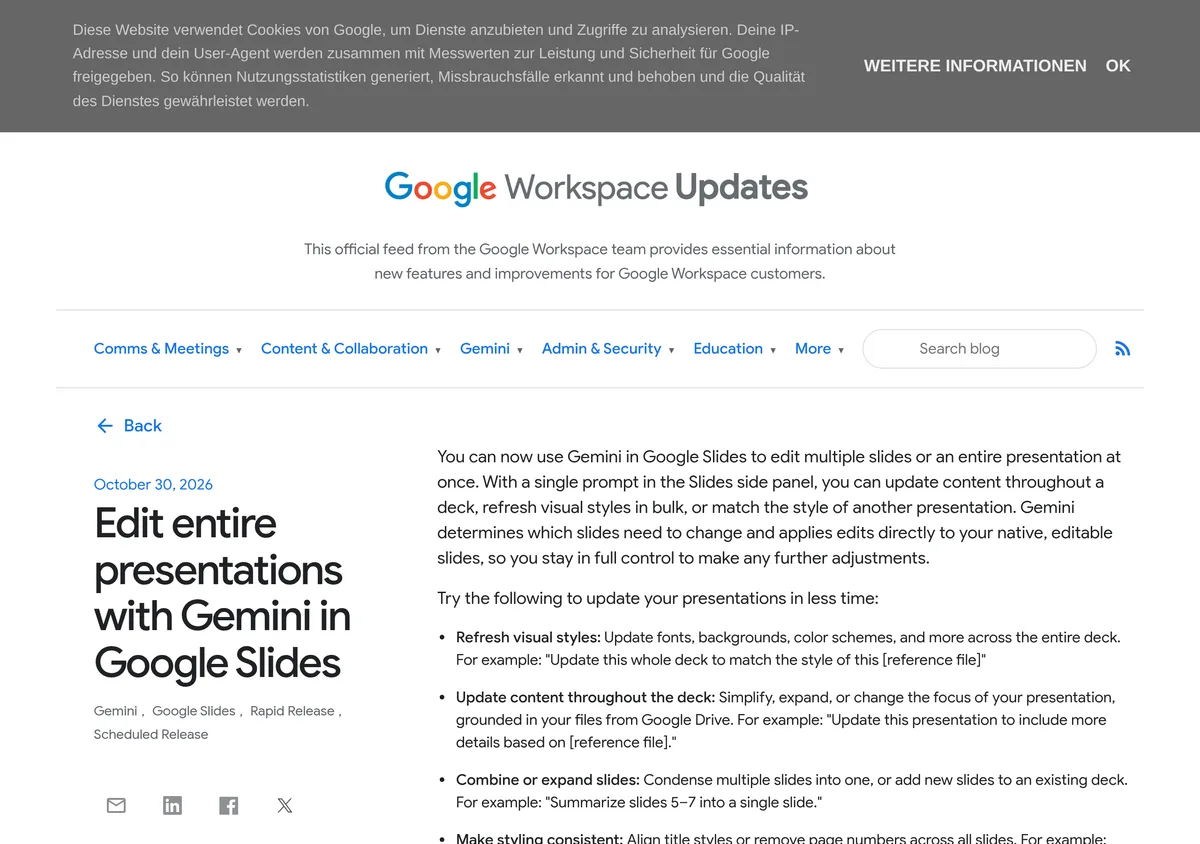
Source: workspaceupdates.googleblog.com, captured October 31, 2026.
Who actually gets it
This is the part worth checking before you go looking for the button. Per the same Google Workspace Updates post, eligibility runs by plan tier, not by account type generally:
| Tier | Qualifies | Does not qualify |
|---|---|---|
| Business | Business Standard, Business Plus | Business Starter |
| Enterprise | Enterprise Standard, Enterprise Plus | (none listed) |
| Consumer | Google AI Pro, Google AI Ultra | Google AI Plus, free Gemini |
| Education | Google AI Pro for Education | Education accounts without the add-on |
Source: Google Workspace Updates, October 30, 2026.
The gap that stands out is Google AI Plus, the $4.99/month consumer tier (per Engadget, June 8, 2026). It's shut out here even though Google gave every signed-in Gemini user, paid or free, a different file-editing feature the day before (in-chat document and spreadsheet editing inside the Gemini app, covered separately). Whole-deck Slides editing is the pricier sibling, not the free one. Google AI Plus and free accounts that don't see the feature in Slides aren't missing a bug; they're missing the plan tier.
Rollout itself started October 29, 2026 across both Rapid Release and Scheduled Release domains, and Google is calling it an "extended rollout" that can run past the usual 15-day window for a feature to become visible. Eligible on paper but not seeing it yet? Give it a few more days before filing a support ticket.
How to turn it on
Nothing to configure. Per the announcement, there's no admin control for this specific feature at all, on or off.
- Open an existing presentation with more than one slide in Google Slides.
- Click Ask Gemini, top right of the editor.
- In the side panel's prompt box, describe a deck-wide change rather than a single slide. Per Google's examples, you can point at a Drive file in the prompt itself to match its style or pull content from it.
- Press Enter.
- Wait. Gemini works out which slides are affected and edits them directly; a summary of what changed appears in the side panel when it's done.
- Check the result. If something's off, Ctrl+Z undoes it like any other edit, and File > Version history gets you back further if you've kept working.
That covers the whole flow. The side panel and the "Ask Gemini" entry point are unchanged from single-slide mode; what changed is what happens after you hit Enter.
What the documentation still doesn't say
A few things Google hasn't published yet, worth flagging rather than guessing at:
- No stated deck-size or complexity cap. The announcement mentions a promotional period (through at least December 1, 2026) with higher usage limits specifically for multi-slide generation, and says standard per-user limits apply after that, with details to come on the Workspace admin limits page. Read that as: a cap exists, it's just not public yet.
- No confirmation on what it leaves alone. Embedded video, complex charts, speaker notes, custom fonts not in Slides' library, none of it is mentioned either way in the announcement. Test with your actual deck before trusting it on something high-stakes.
- English only at launch, stated directly in the post, with no date given for other languages.
Versus editing one slide at a time
The old mode isn't gone, and it's still the right tool for a small, targeted fix: "rewrite the bullet on slide 3 to be shorter" is still a one-slide job, and routing it through whole-deck mode is overkill. Whole-deck mode earns its keep on repetitive, deck-wide work: a style refresh before a client meeting, trimming a 40-slide deck down after a scope cut, making every title slide match after three people edited the deck independently. The dividing line is simple: if you'd have to say the same instruction more than three or four times across slides, this is the mode that saves you the repetition.
Gemini in Docs and Sheets don't have an equivalent yet. Google hasn't announced a timeline for extending this pattern there, and nothing in the October 30 post hints at one, so don't plan around it showing up next month.
The verdict
Business Standard, Business Plus, Enterprise Standard, Enterprise Plus, Google AI Pro, and Google AI Ultra accounts that touch decks with more than a handful of slides should turn this on now; it's free within the existing plan and the downside is a single undo. Google AI Plus and free accounts get nothing new here today, and the quicker path in is upgrading to AI Pro rather than waiting for Google to extend this down-tier. Small, mostly one-off decks don't need this at all; single-slide prompting still does the job.