
Table of Contents
How to set up a Lindy routine: a weekly AI pricing-change tracker, step by step
A Lindy routine is a set of plain-English instructions that Lindy runs on a schedule. We built one on October 19, 2026 that checks the pricing pages and changelogs of the AI tools we review every Monday and emails a digest of real changes. Lindy wrote the routine for us in one click. Its first test run took 96 seconds, cost 9 credits and sent nothing, because the routine did not know which tools to check. This guide walks through the setup with our screenshots, shows the edits that fix that gap, and gives you an instruction template you can paste into your own routine.
| Setup | |
|---|---|
| Date | October 19, 2026 |
| Plan | Lindy Trial, 5,000 credits, no card on file |
| Workspace | One user, no Gmail or Outlook connected, Slack connected |
| Routine | "AI tool pricing and changelog digest", created from a Home suggestion |
| Schedule | Every Monday at 8:00 AM, America/New_York |
| Runs | One test run (dry run) |
Step 1: Open Home and pick a suggestion
Lindy is now a chat-first assistant. The left sidebar has Home, Meetings, Memory, Routines, Skills and Integrations. Home shows an "Ask Lindy anything" box and, below it, a few suggestions. Ours were tailored to Pondero: a daily AI brief, a pricing and feature tracker for the tools we review, and a shortlist of new AI and MCP tools.
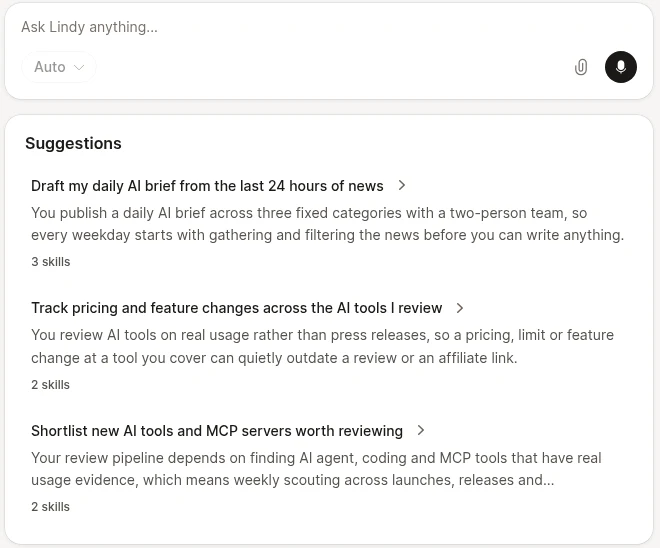 Our Lindy workspace, captured October 19, 2026.
We clicked "Track pricing and feature changes across the AI tools I review". Lindy created a routine called "AI tool pricing and changelog digest" and opened it in a side panel. No questions, no form.
No matching suggestion? Open Routines, click New, and describe the job in a sentence. Either path ends at the same routine panel.
Step 2: Review the schedule
The trigger is a Scheduled timer. Lindy picked Weekly, Monday, 8:00 AM in our time zone. You can change the frequency (Daily, Weekly or Monthly), the days, the time in 15-minute steps, add a second time, or switch the time zone.
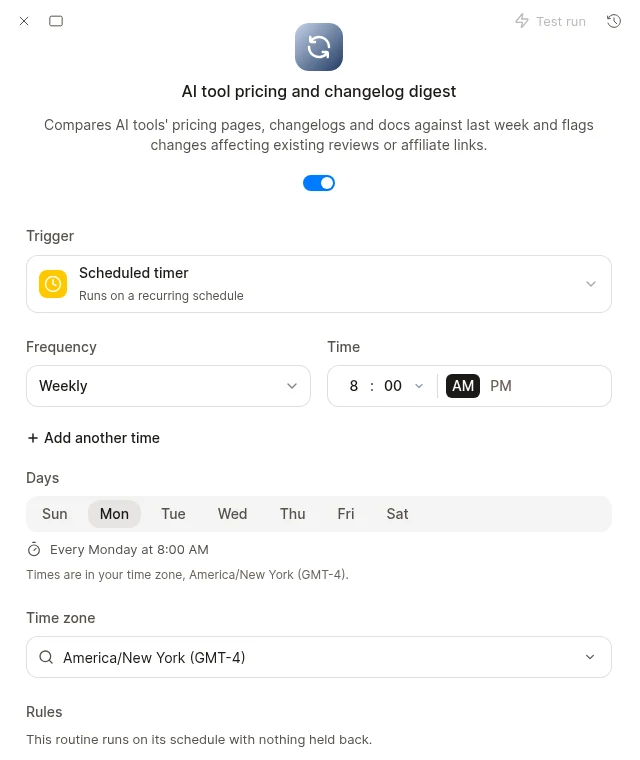 Our Lindy workspace, captured October 19, 2026.
Weekly is a sensible default for pricing pages, and each run costs credits (Step 6). Pick a time a few hours before you plan your week so the digest is waiting.
Step 3: Read the instructions Lindy wrote
Scroll down to Instructions. This is the routine. Lindy runs these words each time the trigger fires, so read every line. Here is what Lindy wrote for us, verbatim:
Work through every AI tool on the user's review list in order and, for each one,
pull its public pricing page, changelog/release notes, and product docs (use
Search with Exa and page fetching for the research). Extract the current price
points and plan tiers, usage limits and quotas, model lineup, and notable features.
Diff those extracted values against the values saved at the end of the previous
pass of this routine and keep only genuine changes: new or retired tiers, price
increases or decreases, quota or rate-limit changes, new or retired models, and
meaningful feature additions, removals, or renames. Ignore cosmetic copy edits,
marketing banners, testimonials, and wording A/B tests.
For every real change, capture: the tool name, exactly what changed written as
old value -> new value, a direct link to the specific pricing page or changelog
entry, and a one-line note naming the user's existing review or affiliate link
that the change affects (for example a review that quotes the old price, or an
affiliate link whose commission tier or plan mapping moved) plus what should be
updated there.
Re-save the freshly captured field values for every tool at the end of the pass
so the next pass diffs against the current state.
Then send the user one digest by email (and mirror it to a Slack DM only if email
is unavailable) with: a short header naming the date, changes grouped by tool, one
bullet per change, and the link on each bullet. If nothing changed for any tool,
send nothing and instead just record that the pass found no changes.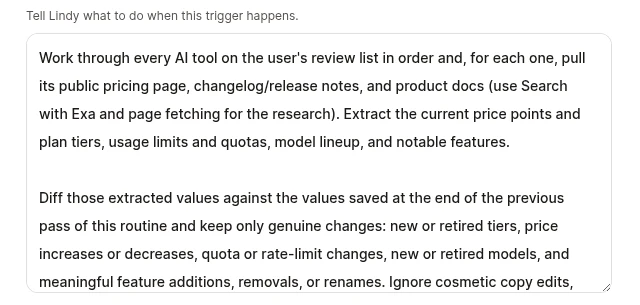 Our Lindy workspace, captured October 19, 2026.
The logic is good: diff against last week, drop cosmetic noise, say nothing when nothing changed. Three things are missing. It never says which tools are on "the user's review list". It has no limit on how much research one run may do. And it leaves the delivery channel to chance.
Step 4: Edit the instructions before the first real run
Make three changes in the Instructions box. The panel saves on its own; the button at the bottom reads Saved.
- Add the tool list. Name each tool and paste its pricing and changelog URLs. Fixed URLs mean Lindy fetches pages instead of searching for them.
- Cap the work per run. Set a maximum number of tools and pages, and tell Lindy to stop and report rather than keep searching when a page will not load.
- Choose one channel. Pick email or a Slack DM and say so. Our workspace had no Gmail or Outlook connected, and the Routines page showed a "Connect Gmail or Outlook" banner, so check yours before relying on email.
Here is the version we recommend. Replace the tools, URLs and channel with yours:
Check these tools, in this order. Do not add others.
1. Cursor: https://cursor.com/pricing , https://cursor.com/changelog
2. Zapier: https://zapier.com/pricing
3. n8n: https://n8n.io/pricing/
4. Make: https://www.make.com/en/pricing
5. Lindy: https://www.lindy.ai/pricing

Limits: at most 5 tools and 2 pages per tool per run. Fetch the URLs above
directly; use web search only if a URL fails, and then only once per tool. If a
page still fails, list it under "Could not check" and move on.

For each tool, record: every plan name, its monthly price in USD (say if the page
shows only annual billing or another currency), usage limits, and models included.

Compare with the values you saved last week. Report only real changes: new or
removed plans, price changes, limit changes, model changes. Ignore wording,
banners and layout. Write each change as "old value -> new value" with the link.

Save this week's values for next week's comparison.

Send one Slack DM to me with the changes grouped by tool. If nothing changed,
send one line: "No pricing changes this week" plus any "Could not check" items.
The currency line matters. In a separate test the same day, Lindy read n8n's pricing in euros and converted the prices to dollars instead of reading n8n's USD prices. Note also that the "no changes" line differs from Lindy's default of sending nothing: a short confirmation tells you the routine ran.
Step 5: Run a test and read the log
Click Test run at the top right of the panel. Lindy calls this a "Routine dry run": it walks through the current setup and tells you what it would do, without sending anything.
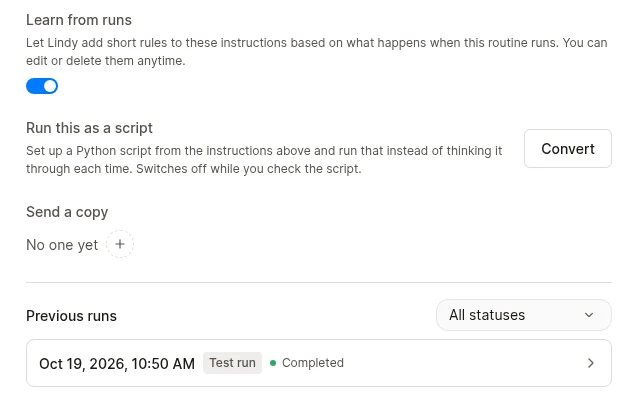
Ours ran before we edited the instructions. It worked for 96 seconds and came back with "Nothing was sent." The log shows why: Lindy searched its own file storage for anything named like a review list, found nothing, and stopped.
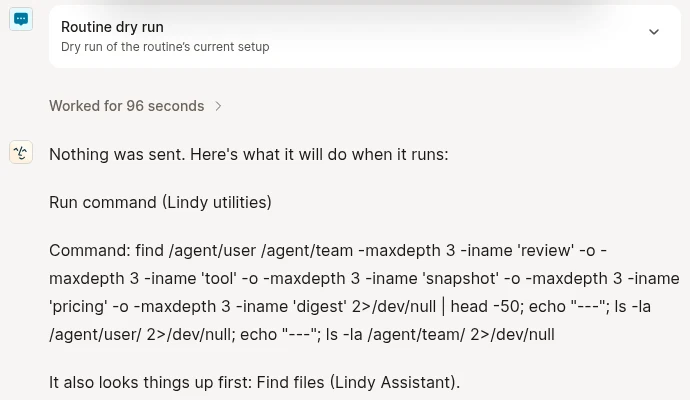 Our Lindy workspace, captured October 19, 2026.
A test run exists to catch exactly this before a real Monday run does. Run another after your edits. You want the log to name each of your tools and the pages it fetched. Every run appears under Previous runs at the bottom of the panel; click one to reopen its log.
 Our Lindy workspace, captured October 19, 2026.
Learn from runs was on by default. Lindy describes it as adding "short rules to these instructions based on what happens when this routine runs", which you can edit or delete. Reread the instructions after a few weeks so you know what was added.
Step 6: Check what each run costs
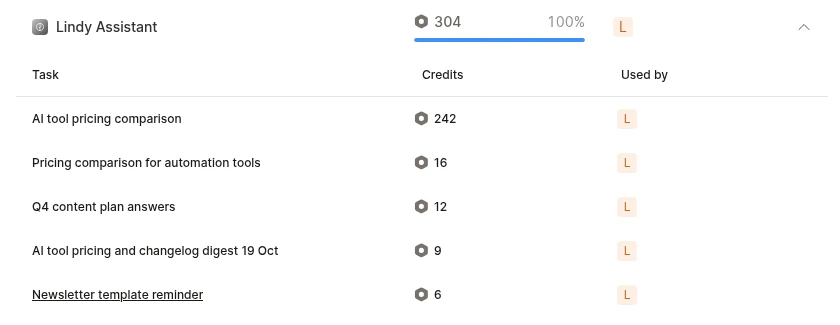
Every run spends credits. In Lindy's settings, open Usage under Workspace and expand the agent to see credits per task.
 Our Lindy workspace, captured October 19, 2026.
Our dry run used 9 credits on the usage page. The badge in the chat showed 1.8 for the same run, so trust the usage page. The other rows show why caps matter. One open-ended pricing request across five tools (GitHub Copilot, Claude, ChatGPT, Perplexity, Windsurf) ran for about 16 minutes and used 242 credits. A similar request for five automation tools took about a minute and used 16. The difference was how much searching Lindy decided to do.
 Our Lindy workspace, captured October 19, 2026.
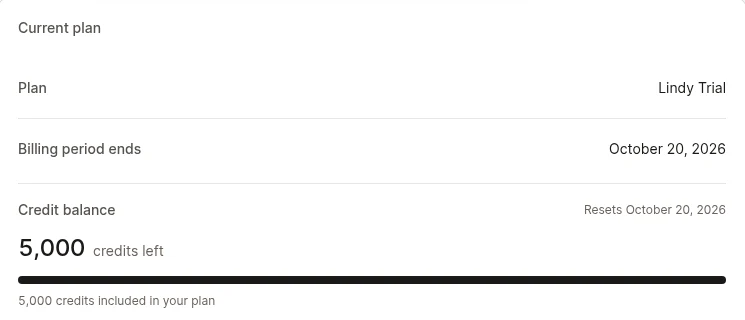
Our trial came with 5,000 credits. At 16 credits a run, a weekly routine costs roughly 70 credits a month. At 242, it is over 1,000. The limits in the Step 4 template (fixed URLs, a page cap, one search retry) exist to keep you near the low end. Check the usage page after the first two real runs and tighten the caps if the number climbs.
Step 7: When to use "Run this as a script"
Run this as a script turns the instructions into a Python script that runs "instead of thinking it through each time", in Lindy's words. The routine switches off while you review the script.
It fits a tracker like this once the tool list and URLs are stable: fetch fixed pages, pull plan names and prices, compare with last week, send a message. Keep it in plain instructions while you are still changing the list or the output format, and when vendors redesign pricing pages often, since fixed parsing code is more likely to break on a layout change than the model reading the page. We have not converted our routine yet, so we cannot report its credit cost.
What this test does not show
- One routine, one test run. We have not yet let it run on its Monday schedule, so we have no real digest to show and no cost for a full pass.
- No email delivery tested. Our workspace had no Gmail or Outlook connected.
- A trial plan. Credit costs per task may differ on paid plans; check the usage page on yours.
For the full verdict on the product, read our Lindy review, see plans and features on the Lindy tool page, and see how Lindy handled real Slack threads in our Lindy Slack integration test. If you want to try this routine yourself, you can start a Lindy trial here.
What changed
- October 19, 2026: First published, from our routine setup and test run on October 19, 2026.