Table of Contents
Gemini Notebook's @mention actions and Google Vids' new editing tools: setup, cost, and limits
Google pushed three separate Workspace AI updates live in a 48-hour window between October 22 and 23, 2026, and shipped none of them as a bundle. Gemini Notebook became a connected app inside Gemini chat. Google Vids picked up audio-track extraction and a per-clip speed control. None of the three requires a new purchase if you already have Vids or Gemini Notebook access. Two of them ship off by default in one region, and none of Google's three announcement posts says what the connected app does to your Notebook usage quota.
What follows: what each feature actually does, who already has access, the exact clicks to use each one, and the quota question Google left unanswered.
What shipped this week
| Feature | What changed | Rollout started | Source |
|---|---|---|---|
| Gemini Notebook connected app | Type @Gemini Notebook in a Gemini chat to create, edit, add sources to, or query a notebook without opening it | October 23, 2026 | Workspace Updates |
| Vids audio extraction | Pull a clip's audio onto its own timeline track; trim, move, or delete it without touching the video | Gradual from October 19, 2026 (up to 15 days) | Workspace Updates |
| Vids clip speed | Set one clip from 0.25x to 2x, independent of the rest of the scene | Gradual from October 16, 2026 (up to 15 days) | Workspace Updates |
Before this week, a Vids video track was either muted or not, scene-bound, no middle ground. Audio and video speed moved together or not at all. Both limits are gone for anyone who already has Vids. The Gemini Notebook change is a different kind of shift: it moves a notebook action out of the Notebook UI entirely and into whatever chat window you already have open.
Who gets it and what it costs
Gemini Notebook's connected app rides on whatever Gemini and Gemini Notebook access you already have. There's no new SKU and no add-on fee. Per Google's rollout notes, it's on by default globally, with one exception: inside the European Economic Area, it ships off, and a user has to opt in through Settings > Connected Apps in the Gemini app.
Vids audio extraction and speed control work differently, because they require an eligible Vids subscription before any of this matters. Per Google's plan-comparison page, base editing tools like trim, mute, and now audio-split and speed aren't gated behind a specific AI tier the way Vids' generative features are. AI avatars, AI voiceover, and music generation need Google AI Pro or Ultra on a personal account, or a matching Workspace or Enterprise SKU. If you can already open a video in Vids today, both new editing tools came with it at no extra charge.
| Plan | List price (EU, as shown on Google's pricing page; US pricing may differ) | Vids access | Source |
|---|---|---|---|
| Workspace Business Starter | ~€6.80/user/mo | Yes | workspace.google.com/pricing.html, fetched 2026-10-26 |
| Workspace Business Standard | ~€13.60/user/mo | Yes | same, fetched 2026-10-26 |
| Workspace Business Plus | ~€21.10/user/mo | Yes | same, fetched 2026-10-26 |
| Workspace Frontline Plus | Quote-only | No | Gemini plan comparison |
| Google AI Plus (personal) | €9.99/mo | Yes, base editing; partial generative Vids tools | one.google.com/about/plans, fetched 2026-10-26 |
| Google AI Pro (personal) | €21.99/mo | Yes, editing plus the full generative Vids suite | same, fetched 2026-10-26 |
Frontline Plus is the one named tier that misses Vids entirely, per the same comparison page. Everything from Business Starter up, and Enterprise Starter up, includes it.
The open question is Notebook's compute budget. Google replaced Gemini Notebook's fixed daily caps with a compute-based quota on September 2, 2026, where a heavier task burns through a five-hour window faster than a short query does. None of the three October posts says whether @Gemini Notebook actions draw from that same budget. Structurally, there's no reason they wouldn't: the connected app sits on top of the same Notebook backend Google already unified under that system. A chat session that adds a dozen sources or asks a long retrieval question will likely cost more of your window than typing the same request inside Notebook itself costs, simply because it's the same backend answering either way.
How to turn on and use each feature
Gemini Notebook's @mention actions
- Confirm access. In the Gemini app, check
Settings > Connected Apps. Outside the EEA it's already on; inside it, flip it there. - In any Gemini chat, type
@Gemini Notebookand let the chip resolve, or just phrase the request naturally. Gemini auto-detects relevant prompts without the explicit mention. - Use it for the four jobs Google names directly: create, edit, or delete a notebook; add, update, or delete sources; list notebooks and what's inside them; or answer a question using existing notebook context.
- Google's own examples, worth copying verbatim as a starting template: "Create a Gemini Notebook about solar farm market trends," "Add a copy of this chat to my notebook about Bio 101 course," "Show me a list of all the sources in my notebook about US National Parks," "What do my Gemini Notebooks say about butterfly migration?"
For a Workspace org, admins control this through two separate toggles, Gemini and Gemini Notebook, in the admin console's generative-AI access settings. Both have to be on for a group or organizational unit before the connected app appears for anyone in it.
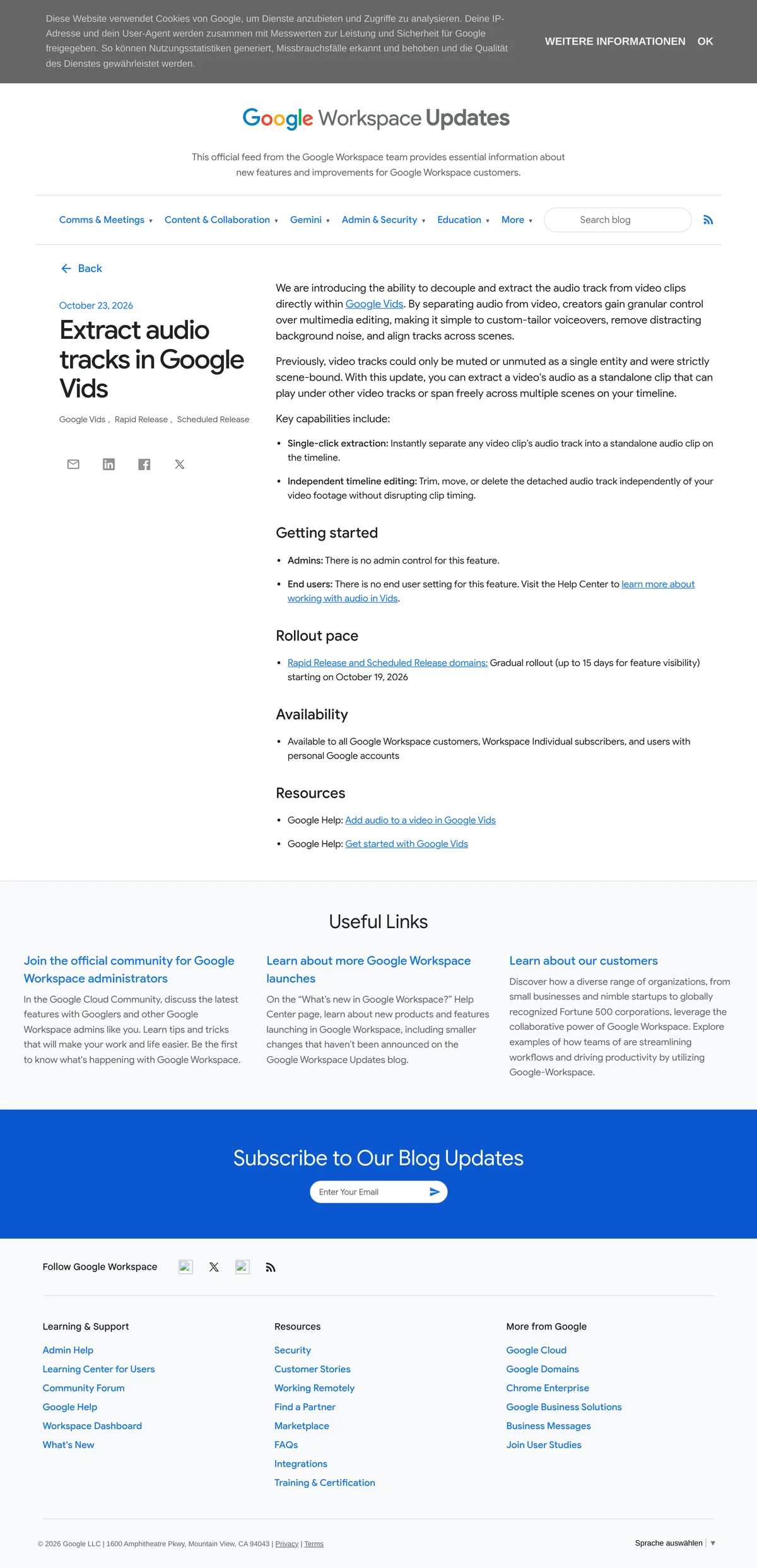
Vids: split a clip's audio onto its own track
- Open the video at
docs.google.com/videos, then select the scene you're editing. - Click the clip on the canvas to open its options panel, the same panel that already holds Animation, Sound, and Playback controls.
- The new single-click extraction lives inside that panel. One click pulls the clip's audio onto a standalone track.
- Trim, move, or delete the extracted track independently of the video. It can now span multiple scenes on the timeline, something the old mute/unmute toggle never allowed because audio used to be locked to a single scene.
 Source: workspaceupdates.googleblog.com, captured October 26, 2026.
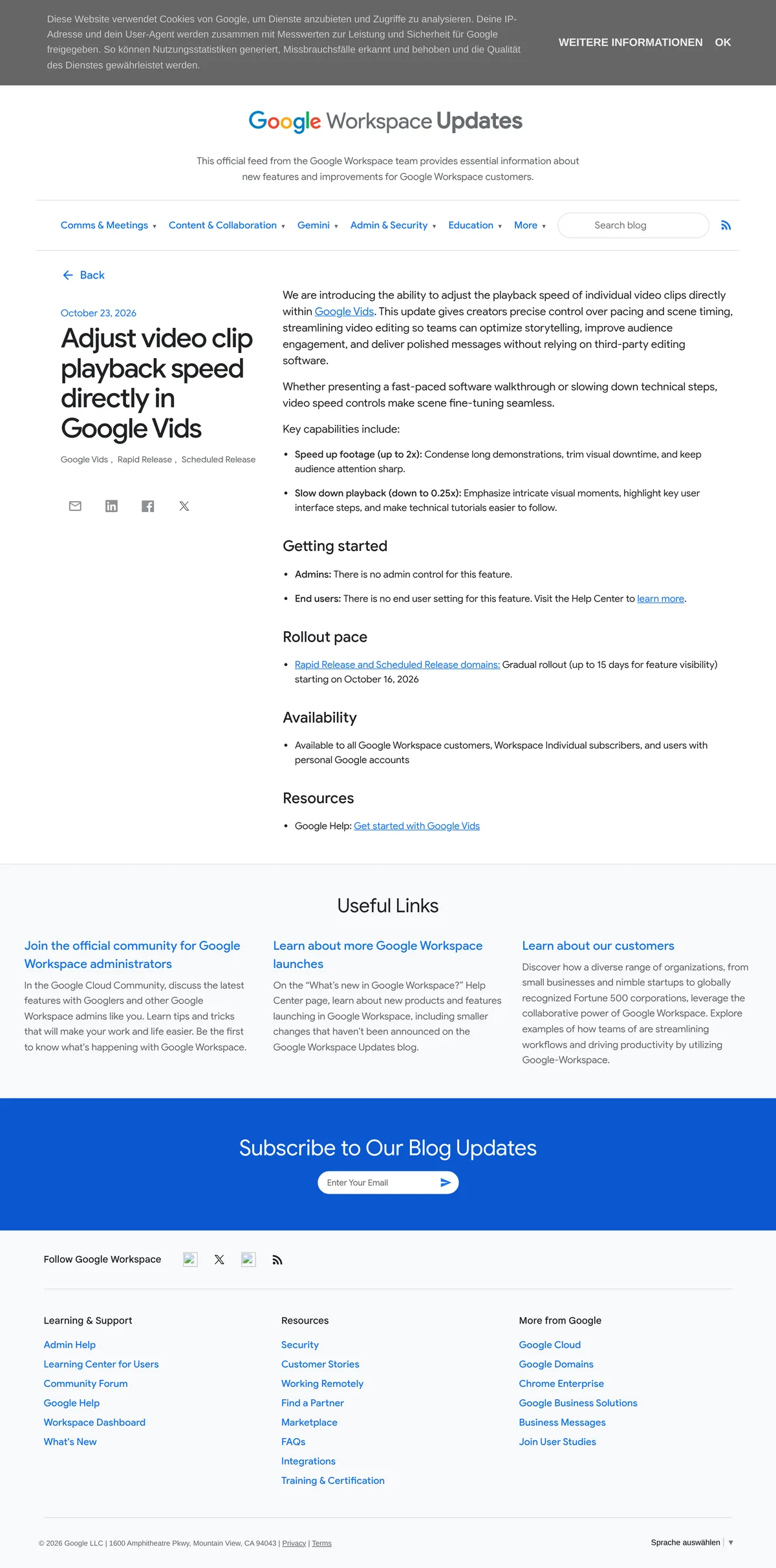
Vids: change one clip's playback speed
- Click the clip on the canvas to open the same Playback options panel used for trimming start and end points and setting a loop.
- Set the clip anywhere from 0.25x, useful for a dense UI step you want a viewer to actually see, up to 2x, useful for cutting dead air out of a long demo.
- The change applies to that one clip only. The rest of the scene keeps its original timing, so you're not stuck re-syncing every other clip around it.
 Source: workspaceupdates.googleblog.com, captured October 26, 2026.
Where it stops
Neither Vids feature has an off switch. Per Google's own rollout notes, there's no admin control and no end-user setting for audio extraction or speed control. An org that wants either feature gone has to restrict Vids access itself, not flip a setting inside it.
A few other limits carry over from existing Vids rules and still apply to anything you build with these two tools:
- Videos cap at 30 minutes, per Google's Vids documentation.
- Audio objects, including a track you've just extracted, cap at 50 per video, per the same help center.
- Safari plays back a finished Vids project but can't edit or comment, so none of this works if your team edits from Safari.
- Rollout is gradual, up to 15 days per Google's own language, so a colleague on your exact plan may not see either Vids tool on the same day you do.
The EEA default-off setting for Gemini Notebook's connected app is the one regulatory wrinkle worth flagging to an admin before a US-based rollout plan gets copied onto an EU tenant. What works as "already on" for most users is an opt-in step for anyone sitting in the EEA.
The alternatives
For Gemini Notebook, opening the notebook directly still beats the chat mention for anything that needs you to see more than one source at a time, cross-reference material, or review a long list before acting on it. The @mention path wins for quick, single-purpose asks: add this, list that, answer from existing context, without a tab switch.
For Vids audio work, a dedicated editor (Descript, CapCut, or a full NLE like Premiere) still wins if you need multi-track mixing, real noise reduction beyond "remove distracting background noise," or audio that needs to outlive this one video project. Vids' new extraction is for cleanup inside a single project, not a production audio pipeline.
For Vids speed changes, the 0.25x-to-2x control is a flat, per-clip multiplier, not a ramp. If you need the speed to change gradually within a single clip rather than jump at the cut, a real video editor is still the only way to get that.
The verdict
If your team already pays for Vids, Business Starter and up, Enterprise Starter and up, or a personal AI Plus/Pro plan, both new editing tools are live without you doing anything. Treat that as a reason to finish a quick explainer or walkthrough entirely inside Vids instead of exporting to a separate editor for one audio cleanup pass or one speed change.
If you run Gemini Notebook for research and you're outside the EEA, the connected app is already on. Use @Gemini Notebook for the boring, single-step jobs, adding a source, listing what's in a notebook, and keep the Notebook UI itself for anything that needs you to compare multiple sources side by side.
If you're an admin in the EEA, or anywhere you'd rather this stayed off, flip it at Settings > Connected Apps. And if your team leans on @Gemini Notebook heavily once it's on, watch the five-hour compute window Google introduced in September. Nothing in this week's announcement suggests chat-triggered actions get a separate budget from the rest of Notebook.