
Table of Contents
GitHub Copilot Memory: How to Enable It and When It Beats a Manual Instructions File (May 2026)
Copilot Memory crossed from background feature to something worth configuring this week. The May 26 update added a repository-level off switch, /memory commands in the Copilot CLI, clearer labels for what Copilot is storing, and better deletion guidance (GitHub changelog, May 26, 2026). With usage-based billing live as of June 1 and Claude Opus 4.8 carrying a 15X premium multiplier, the context Copilot already holds about your repo now ties directly to what you spend. This guide covers what Memory stores, how to check and delete it, and whether to run it or a .github/copilot-instructions.md file. If you use the Copilot CLI, open a terminal and run /memory show right now to see what it has on you.
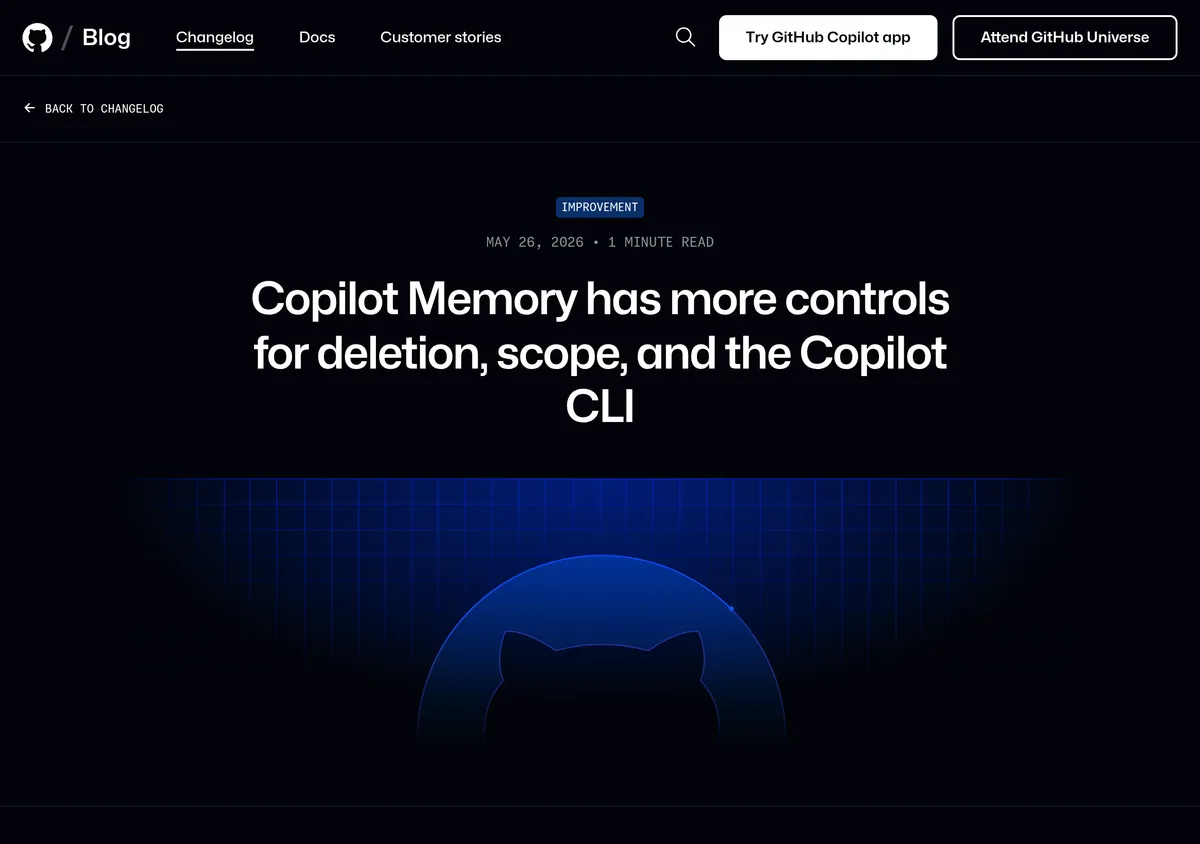 Source: github.blog, captured October 23, 2026.
What Copilot Memory actually stores
Memory is GitHub's name for knowledge Copilot keeps between sessions instead of forgetting everything the moment a chat closes. It runs at two scopes, which differ in where the memory applies and who can see it.
Repository-level facts
These are facts about a specific repo: coding conventions, architectural decisions, build commands, project-specific rules. Once stored, they're available to every contributor who has Memory access on that repo, but they only apply inside that same repo (GitHub docs: About Copilot Memory).
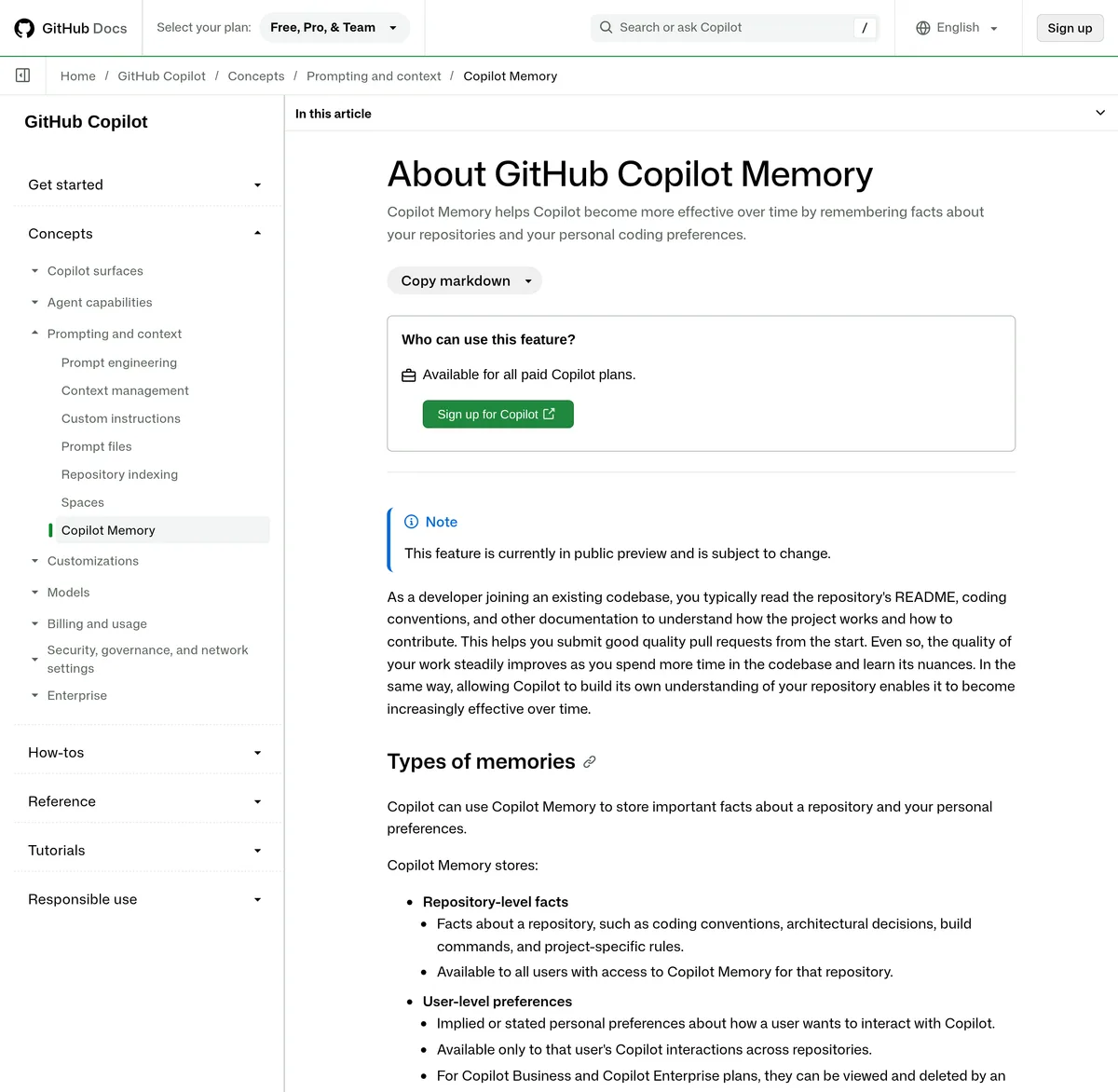 Source: docs.github.com, captured October 23, 2026.
The mechanism is more careful than a plain key-value store. Each repo-level fact is saved with citations pointing to the code that backs it up. When Copilot pulls a fact into its current work, it re-checks those citations against the current branch and only uses the fact if it still holds. So a stored fact like "this project uses Vitest for unit tests" gets re-validated against the branch before Copilot acts on it. Only users with write access can create repo-level facts in the first place.
User-level preferences
These are personal: how you like Copilot to interact with you, your response style, workflow patterns it picked up. They follow you across every repo you touch, and they're visible only to you. User-level preferences need a Copilot Pro, Pro+, or Max plan. Business and Enterprise seats don't get them on their own.
Preferences are stored with citations too, sometimes including a direct quote of what you said. Copilot uses its own judgment to decide whether a preference still applies, which is a softer check than the branch-citation validation on repo facts.
Which Copilot features use Memory today
Three features read and write Memory right now: the cloud agent, code review, and the CLI. What one captures, another can use. If the cloud agent figures out how your repo handles database connections, code review can later flag a pull request that breaks that pattern. The reverse works too.
Two limits are worth knowing before you decide this is safe to leave on:
- The CLI applies stored facts and preferences only for the user who started the operation. Your teammate's preferences never leak into your CLI session.
- Code review uses repository-level facts only. It ignores user-level preferences entirely, so a reviewer's personal style never colors the review.
How to enable and check Copilot Memory
Memory is enabled per user, not per repo. Once you turn it on, Copilot can use it in any repo where you work (GitHub docs: managing Copilot Memory).
Default state depends on your plan
For individual Copilot Pro and Pro+ subscribers, Memory is on by default. You did not opt in. If you're on one of those plans and never touched the setting, it's already running.
For enterprise and organization-managed subscriptions, Memory is off by default. An org or enterprise admin has to flip it on before any member can use it. If a developer holds seats from two orgs, the most restrictive policy wins: Memory stays off unless every org granting that seat has enabled it.
Turn it on or off at the user level
GitHub.com > your profile picture > Settings > Copilot > Memory
Set the dropdown to Enabled or Disabled.
That single switch controls Memory for you across every repo. The direct URL is github.com/settings/copilot/memory.
Check what is stored
You have three windows into stored memory:
- User-level preferences:
github.com/settings/copilot/memoryshows the preferences Copilot has saved about you. - Repository-level facts: as a repo owner, go to Repository Settings > Copilot > Memory for the list of facts stored against that repo.
- In the terminal: run
/memory showin the Copilot CLI to see the current status.
The new CLI commands (May 26)
The May 26 update brought Memory controls into the terminal so you don't have to break flow and open a browser:
| Command | What it does |
|---|---|
/memory on | Enables Copilot Memory |
/memory off | Disables Copilot Memory |
/memory show | Shows the current status |
Your choice persists across sessions. Run /memory off once and it stays off the next time you open the CLI, rather than resetting on close.
Delete a specific memory
Two paths. Ask Copilot directly to forget something, and it now points you to the right place to remove the entry and down-votes that memory where voting is available. Or delete it yourself from the settings pages above: repo owners prune repo-level facts under Repository Settings, and you prune your own preferences in your personal Copilot Memory settings.
Repo-level control for admins (new May 26)
Before May 26 there was no clean way to stop Copilot from storing repo-specific knowledge at the repository level. Now there is.
A repository admin can disable Memory for a single repo from the existing Copilot feature controls under Repository Settings > Copilot > Memory. Once off, repository-level facts are no longer stored or read for that repo. Preexisting facts are not deleted, they just sit dormant. Flip it back on and Copilot reads them again.
One thing this switch does not touch: user-level preferences. A repo admin disabling Memory for the repo has no effect on any developer's personal preferences, which stay under that individual's control. Org and enterprise admins set the broader policy: "let organizations decide," "enabled everywhere," or "disabled everywhere" at the enterprise level.
So the control split is clean. Repo admins own repo-level facts. Individuals own their own preferences. Org and enterprise admins set the outer boundary.
Copilot Memory vs. a manual .github/copilot-instructions.md file
This is the decision most readers actually came for. Both approaches teach Copilot about your codebase. A .github/copilot-instructions.md file is the manual route: repository-wide instructions you write and commit, applied to requests in that repo's context (GitHub docs: response customization). Memory is the automatic route: Copilot learns and stores facts as it works.
Here is how they line up.
| Copilot Memory | .github/copilot-instructions.md | |
|---|---|---|
| Scope | Repo-level facts (all contributors) plus user-level preferences (just you, every repo) | One repo, committed in .github. Path-specific and org variants exist for finer control. |
| Maintenance burden | Near zero. Copilot captures facts as it works; you prune the bad ones. | You write and update it by hand. Stale rules linger until someone edits the file. |
| Version control | None. Memory lives in GitHub's store, not in your git history. | Full. It's a tracked file, so changes show in PRs and git blame. |
| Behavior consistency | Soft. Facts get re-validated against the branch, but Copilot still uses judgment about when to apply them. | Hard, within limits. The file is always in context, though Copilot may not follow it identically every time. |
| Best use case | Active repos with multiple Copilot features running, where you want patterns to accumulate automatically. | Repos that need exact, reviewable rules with no auto-learned surprises. |
The split decision: run Memory as the default on active repos where the cloud agent, code review, and CLI are all in play. Letting Copilot accumulate patterns beats assigning someone to babysit an instructions file. Keep a copilot-instructions.md file when you need locked-down, reviewable behavior, the kind of repo where a surprise auto-learned fact is a liability, not a convenience.
Then stack them. Use the instructions file for hard rules you want in git history and visible in code review ("always use TypeScript strict mode," "never suggest the deprecated auth helper"). Let Memory carry the soft patterns it's good at ("this team names test files .spec.ts," "this repo lints with Biome"). The file is your contract. Memory is the colleague who's been here long enough to know the unwritten conventions. You want both.
If you're coming from another tool, this is the same persistent-context problem that drove Cursor's project rules and Cursor's v3.5 automations. The mechanics differ, but the choice is identical: explicit committed rules versus learned context.
Memory and model cost in June 2026
Usage-based billing went live June 1. That changes the math on heavier models. Claude Opus 4.8 went GA in Copilot on May 28 with a 15X premium request multiplier, which holds until usage-based billing launches on June 1 (GitHub changelog, May 28, 2026). Opus 4.8 is available to Copilot Pro+, Business, and Enterprise plans.
 Source: github.blog, captured October 23, 2026.
Here is why Memory belongs in the same conversation. A model that starts every session cold has to re-derive your repo's conventions from whatever context you hand it. A repo where Memory has already captured those conventions gives the model real starting context instead of a blank slate. When each premium-tier request costs 15X a base request, the value you get per request goes up if the model is not spending that request re-learning what your build command is or which test framework you use.
This is not a reason to pick Opus 4.8. Plenty of work runs fine on a base model. It is a reason to configure Memory before you commit to a higher-cost tier, so that when you do reach for the expensive model, it's working from your repo's patterns rather than from zero. Set the cheap thing up first, then decide on the expensive thing.
You can compare current plan pricing on GitHub Copilot's plans page to see where Pro+, Business, and Enterprise land under the new billing model.
Quick FAQ
Is Copilot Memory available on all paid plans? Memory is in public preview and available to all paid Copilot plans. User-level preferences are the exception: they require Copilot Pro, Pro+, or Max. Business and Enterprise seats get repo-level facts but not personal preferences on their own.
Does Memory work in VS Code and the CLI, or just the GitHub app? Today, three features use Memory: the cloud agent, code review, and the CLI. GitHub has said it plans to bring Memory to more features over time. If you run Copilot in VS Code or another IDE, those surfaces do not read or write Memory yet, so a committed instructions file is still the only way to feed them repo context.
Can I see every fact Copilot has stored about my repo?
Yes, if you own the repo. Go to Repository Settings > Copilot > Memory for the full list of repo-level facts, and delete any that are wrong or stale. Your own preferences live at github.com/settings/copilot/memory.
Does Memory pull from my .github/copilot-instructions.md file?
They're separate systems. The instructions file is custom instructions you commit and maintain. Memory is learned context Copilot stores on its own. One of Memory's stated benefits is reducing how much you have to maintain in instructions files, but it doesn't read the file as a source.
What happens to stored facts if I turn off Memory for a repo? Repo-level facts stop being stored or read, but they aren't deleted. Turn Memory back on for that repo and Copilot reads them again. User-level preferences are unaffected by the repo switch.
What we'd do this week
Run /memory show in the CLI, or open github.com/settings/copilot/memory, and look at what's already stored. If you're on Pro or Pro+, Memory has been on by default and quietly learning. On your active repos, leave it on and prune anything that looks wrong. On any repo where exact, reviewable behavior matters more than convenience, keep a committed copilot-instructions.md file for the hard rules and let Memory handle the rest. Then, before you reach for a 15X-multiplier model, make sure Memory has your conventions captured so the premium request isn't burning tokens re-learning your build command.
What changed
- October 23, 2026: Added dated screenshots of the May 26 Copilot Memory changelog, the GitHub docs page on Copilot Memory, and the May 28 Claude Opus 4.8 GA changelog.