
Table of Contents
How to Deploy an n8n Agent Inside Microsoft 365 (Teams, Outlook, SharePoint)
This article contains affiliate links. Disclosure.
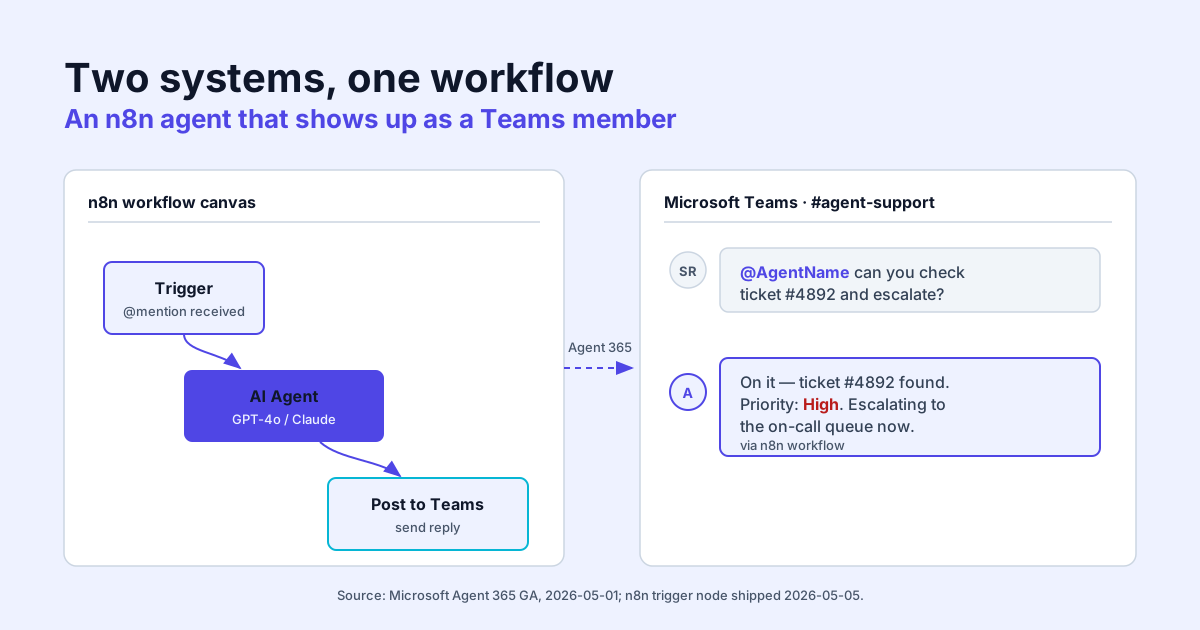
The load-bearing fact in this whole integration is one most write-ups skip: the agent gets its own Entra identity, not a delegated copy of whoever @mentioned it. That single design choice is why the new trigger node is worth the migration, and why the permissions model behaves the way it does later in this guide. Microsoft Agent 365 went generally available May 1, 2026; n8n shipped the dedicated trigger node four days later. Before it, this integration was a hand-registered webhook, token validation in a Code node, and hand-built schema parsing, roughly two hours of fragile setup. The trigger node handles OAuth, deserialization, and response formatting natively and brings that to about twenty minutes. This guide runs every step from Entra registration to a live @mention test, and flags the two places teams get the identity model wrong.
What the Microsoft Agent 365 Trigger Node Does
How an n8n agent gets a company identity in Entra ID
Microsoft Agent 365 issues each agent its own Entra ID object: an agent identity blueprint, a service principal, and an optional agent user account for delegated flows. That identity makes the agent appear in your directory alongside human staff. When someone @mentions it in Teams, Microsoft routes the event to the registered callback, which is now the n8n trigger node URL rather than a hand-rolled webhook.
Which Microsoft 365 surfaces the agent appears in
Once approved by a tenant admin, the agent shows up in Teams (channel and direct messages), Outlook (email threads via cc or direct message), and SharePoint (in-document @mentions and page comments). The Agent 365 platform handles the routing; n8n handles the logic.
What changed from the webhook workaround to the new trigger node
Before May 5, 2026, the integration required a manually registered webhook endpoint, token validation in a Code node, and hand-built message schema parsing. The new trigger node (n8n release notes) handles OAuth, message deserialization, and response formatting natively. Setup time drops from roughly two hours to twenty minutes.
What You Need Before You Start
Microsoft 365 tenant with admin rights
You need Global Administrator or Application Administrator rights. The blueprint creation step grants admin consent to API permissions, and a standard user account cannot complete it.
n8n Cloud or self-hosted n8n (version requirements)
The Microsoft Agent 365 Trigger node shipped in n8n version 2.2.0. Check your version under Settings > About n8n. Self-hosted instances must be on 2.2.0 or later and must expose a publicly reachable HTTPS endpoint. More on that in the self-hosted section below.
Agent 365 CLI installed locally
The Agent 365 CLI handles blueprint registration. Install it with npm:
npm install -g @microsoft/agent365-cliConfirm the install:
agent365 --version
# Expected output: @microsoft/agent365-cli/1.x.x
Step 1 - Register the App in Entra ID
Create the app registration in the Azure portal
Open portal.azure.com, navigate to Microsoft Entra ID > App registrations > New registration. Name the app something recognizable. n8n-agent-prod works fine. Set the supported account types to Single tenant and leave the redirect URI blank for now.
Set the required API permissions
After the app is created, go to API permissions > Add a permission > Microsoft Graph, then add the following delegated and application permissions:
Delegated:
  - User.Read
  - Chat.ReadWrite
  - ChannelMessage.Send
  - Mail.ReadWrite
  - Sites.ReadWrite.All

Application:
  - AgentMessage.Send.All
  - TeamsActivity.Send.All
Grant admin consent once all permissions are added. Without the admin consent step, the agent blueprint submission will fail.
# Verify consent status via Azure CLI
az ad app permission list-grants --id <YOUR_CLIENT_ID>
Copy the client ID and tenant ID for later
From the app registration overview page, copy:
- Application (client) ID. You will use this in the CLI and the n8n credential.
- Directory (tenant) ID. Same use.
Generate a client secret under Certificates & secrets > New client secret. Store it in your secrets manager now. Azure will not show it again.
Step 2 - Create the Agent Blueprint with the Agent 365 CLI
Install the CLI and authenticate
agent365 login --tenant <YOUR_TENANT_ID>
# Browser window opens for device-code auth.
After authentication completes, the CLI confirms your tenant and lists any existing blueprints.
Run the blueprint command and set the display name
agent365 blueprint create \
  --name "Triage Bot" \
  --client-id <YOUR_CLIENT_ID> \
  --callback-url https://your-n8n-instance.com/webhook/agent365 \
  --description "Support triage agent powered by n8n"
The --callback-url is the webhook URL n8n generates once you add the trigger node (Step 3). You can update it after the fact with agent365 blueprint update --id <BLUEPRINT_ID> --callback-url <NEW_URL>.
Submit for admin approval and what to expect while waiting
agent365 blueprint submit --id <BLUEPRINT_ID>
# Output: Blueprint submitted. Status: pending_admin_approval
Your tenant admin receives an approval request under Settings > Integrated apps in the Microsoft 365 admin center. Approval takes minutes if the admin is watching; allow up to 24 hours for async workflows. Poll status with agent365 blueprint status --id <BLUEPRINT_ID>.
Step 3 - Configure the Agent 365 Trigger Node in n8n
Add the trigger node and connect your credentials
In n8n, create a new workflow and add the Microsoft Agent 365 Trigger node as the starting node. Open the credential selector and create a new Microsoft Agent 365 credential. Paste in:
- Client ID
- Client Secret
- Tenant ID
n8n will validate the credential against Entra on save. A green checkmark confirms a working OAuth connection.
The trigger node generates a webhook URL. Copy it and update your blueprint's callback URL if you used a placeholder in Step 2.
Write a system prompt that scopes the agent's behavior
The trigger node has a System Prompt field. Keep it specific. "You are a helpful assistant" produces unpredictable output in a business context. A tighter version:
You are Triage Bot, the support escalation agent for Acme Corp.
When you receive a Teams message, do the following:
1. Extract the ticket ID or customer name from the message.
2. Look up the open ticket in Zendesk.
3. Check the account tier in Salesforce.
4. Post a summary back to the Teams channel with ticket status, account tier, and recommended next action.
Do not take any action outside these four steps.
Short, ordered, bounded. The agent will not wander.
Connect tools: native nodes, MCP servers, sub-workflows
The trigger node connects to an AI Agent node, which connects to tool nodes. Wire up any n8n native integration (Zendesk, Salesforce, Jira, Slack), any MCP server via the MCP Client node, or a sub-workflow trigger for complex branching.
See n8n AI Agent Nodes for how the AI Agent node differs from the trigger: inbound routing versus reasoning and tool calls.
On n8n Cloud, credentials for all connected tools live in n8n's secure credential store; nothing touches your own infrastructure.
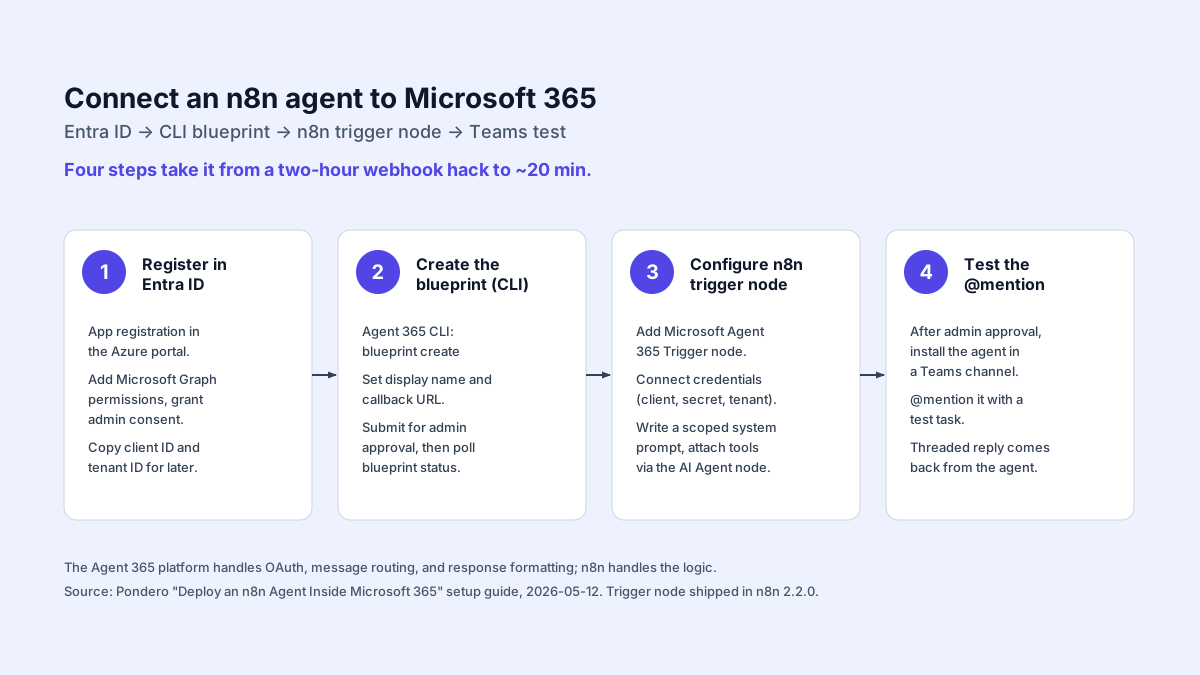
Step 4 - Test the @mention in Teams
Find the agent in your org's app directory
Once the admin approves the blueprint, the agent appears in your Microsoft 365 tenant's app catalog. In Teams, open Apps > Built for your org and search for the display name you set in the CLI ("Triage Bot" in our example). Install it to a channel or direct message thread.
@mention it in a channel with a test task
In any channel where the app is installed, type:
@Triage Bot ticket ID 4821Teams routes the message to your n8n trigger. The workflow runs, the AI Agent node calls your connected tools, and the response posts back into the thread within a few seconds on a warm workflow. Cold starts on n8n Cloud are typically under two seconds.
What a successful first response looks like
A working integration returns a threaded reply from the agent, not from your personal account, within the same Teams thread. The agent's display name and avatar appear in the message header exactly as they would for a human teammate. If the message comes back from your own account instead, the blueprint callback URL is pointing at the wrong endpoint.
A Worked Example: Support Triage Agent
Scenario: agent reads Zendesk ticket, checks Salesforce account, posts Teams summary
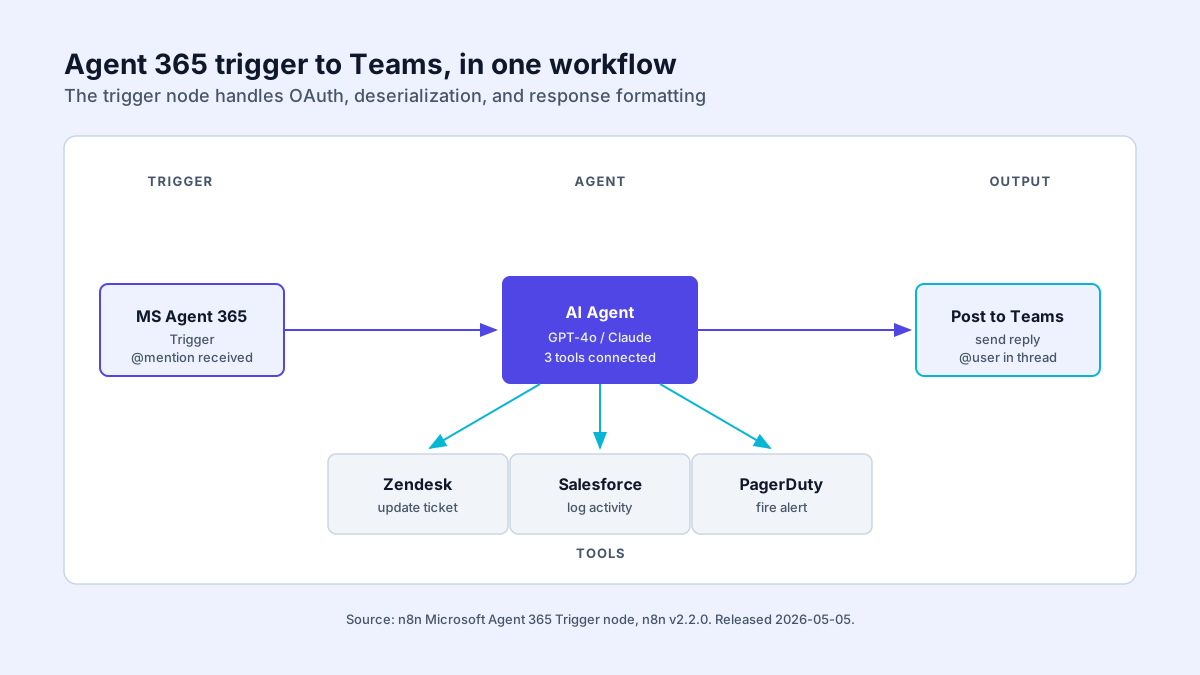
The trigger fires when someone @mentions @Triage Bot in the #support-escalations Teams channel with a ticket ID. The agent needs three data points before it can respond: ticket status, account tier, and whether a PagerDuty incident is already open.
Input: @Triage Bot ticket 4821 in Teams.
Expected output (posted as threaded reply):
Ticket 4821 | Open | Priority: High
Account: Acme Corp | Tier: Enterprise
PagerDuty: No active incident
Recommended action: Escalate to L2. Customer is Enterprise tier and SLA breach window opens in 42 minutes.
The n8n workflow structure for this agent
nodes:
  - id: trigger
    type: n8n-nodes-langchain.microsoftagent365trigger
    name: "Agent 365 Trigger"
  - id: agent
    type: n8n-nodes-langchain.agent
    name: "Triage AI Agent"
    parameters:
      systemMessage: "<paste your system prompt>"
  - id: zendesk
    type: n8n-nodes-base.zendesk
    name: "Get Ticket"
    parameters:
      operation: get
      ticketId: "{{ $fromAI('ticket_id') }}"
  - id: salesforce
    type: n8n-nodes-base.salesforce
    name: "Get Account"
    parameters:
      operation: get
      objectType: Account
  - id: pagerduty
    type: n8n-nodes-base.pagerDuty
    name: "Check Incidents"
    parameters:
      operation: getAll
      filters:
        statuses: ["triggered", "acknowledged"]
The AI Agent node decides which tool to call in which order. You do not wire strict sequences; you attach tools and let the model orchestrate the calls.
How to expand it with PagerDuty or other tools
Attach the PagerDuty node as another tool on the AI Agent node and update the system prompt to mention incident checks. No extra routing logic required. The same pattern extends to ServiceNow, Linear, or any n8n-native integration.
Notes for Self-Hosted n8n Deployments
If you run n8n on your own infrastructure, the Agent 365 callback URL must be publicly reachable over HTTPS. Microsoft's platform will not deliver messages to a private IP or a self-signed cert endpoint.
Public webhook URL and firewall requirements
Your n8n instance needs a stable public FQDN with a valid TLS certificate. Port 443 must be open to inbound traffic from Microsoft's Agent 365 delivery ranges. See your cloud provider's documentation for IP range allowlisting. Cloudways includes one-click firewall rules in its managed hosting panel, which reduces setup friction here. See self-hosting n8n for a full infrastructure walkthrough.
Entra ID redirect URI setup for self-hosted
Go back to your Entra app registration and add your public n8n URL as a redirect URI under Authentication > Add a platform > Web:
https://your-n8n-domain.com/rest/oauth2-credential/callbackThis URI must match exactly what n8n sends during the OAuth handshake. A trailing slash will cause a mismatch error.
Data residency benefits of self-hosted with Agent 365
Teams and Outlook route conversation events through Microsoft's cloud no matter where n8n runs. The workflow execution itself, and any data retrieved from Zendesk, Salesforce, or internal systems, stays on your infrastructure. For GDPR or sector-specific compliance, that boundary matters: Microsoft delivers the trigger payload; your servers do everything else.
FAQ
Does Agent 365 cost extra on top of n8n pricing?
Yes. Microsoft Agent 365 is licensed separately at $15 per user per month, per the GA announcement. The n8n trigger node itself is included in your existing n8n plan, with no additional node fee.
Can the agent access SharePoint files without explicit permissions?
No. SharePoint access requires Sites.ReadWrite.All (or a more scoped alternative like Sites.Selected) granted at the Entra app registration level with admin consent. The agent's Entra identity does not inherit the permissions of the person who @mentioned it.
What happens when the agent errors, does Teams show anything?
Nothing. If n8n errors before posting a reply, Teams shows silence. Add an error branch that catches execution failures and posts a fallback message to the originating thread. That is the single most important UX guard to add before going live.
Can multiple n8n workflows share one Agent 365 identity?
One agent blueprint maps to one callback URL, and one callback URL maps to one n8n trigger node. To route different message types to different workflows, use a single entry trigger that dispatches to sub-workflows based on message content, and the Switch node handles this cleanly. You cannot bind multiple n8n triggers to a single blueprint callback.
Does this work with n8n's AI Agent node or only the new trigger node?
Both. The AI Agent node handles reasoning and tool calls; the trigger node handles inbound delivery from Microsoft 365 surfaces. You need both in the same workflow. If you are comparing n8n against other automation platforms, see Make vs n8n for a breakdown.
What to do tomorrow morning
Build it on n8n Cloud first, even if production will be self-hosted. The trigger node, OAuth handshake, and Entra blueprint are the parts that go wrong, and debugging them behind your own reverse proxy and TLS cert adds a variable you do not want while you are still learning the identity model. Get a green @mention in Teams on Cloud, then port the working workflow to self-hosted once the moving parts are proven.
The recommendation flips on one condition: if data residency or private-network access is a hard requirement, skip Cloud and start self-hosted, because proving the flow on infrastructure you cannot ship to production teaches you the wrong failure modes. Either way, ship the error branch before the agent goes live. A silent agent in a Teams channel is worse than no agent, because people stop trusting it after the first dropped message and never come back.
The cost to weigh: Agent 365 is $15 per user per month on top of n8n, per the GA announcement. For a triage bot the whole point is that it is not a per-user seat for humans, so model it as one agent identity, not a headcount line.